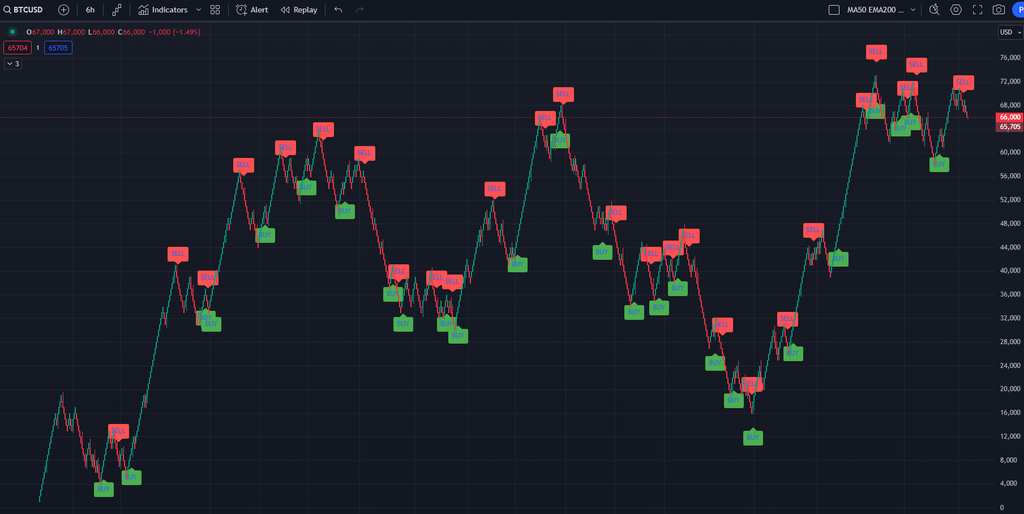
Step 1: Loading TradingView and Creating a Custom Pine Script Alert
First, we need to load TradingView and create a custom Pine Script to set up our buy/sell alerts. In this example, we'll create an alert for when a price line crosses a certain threshold.
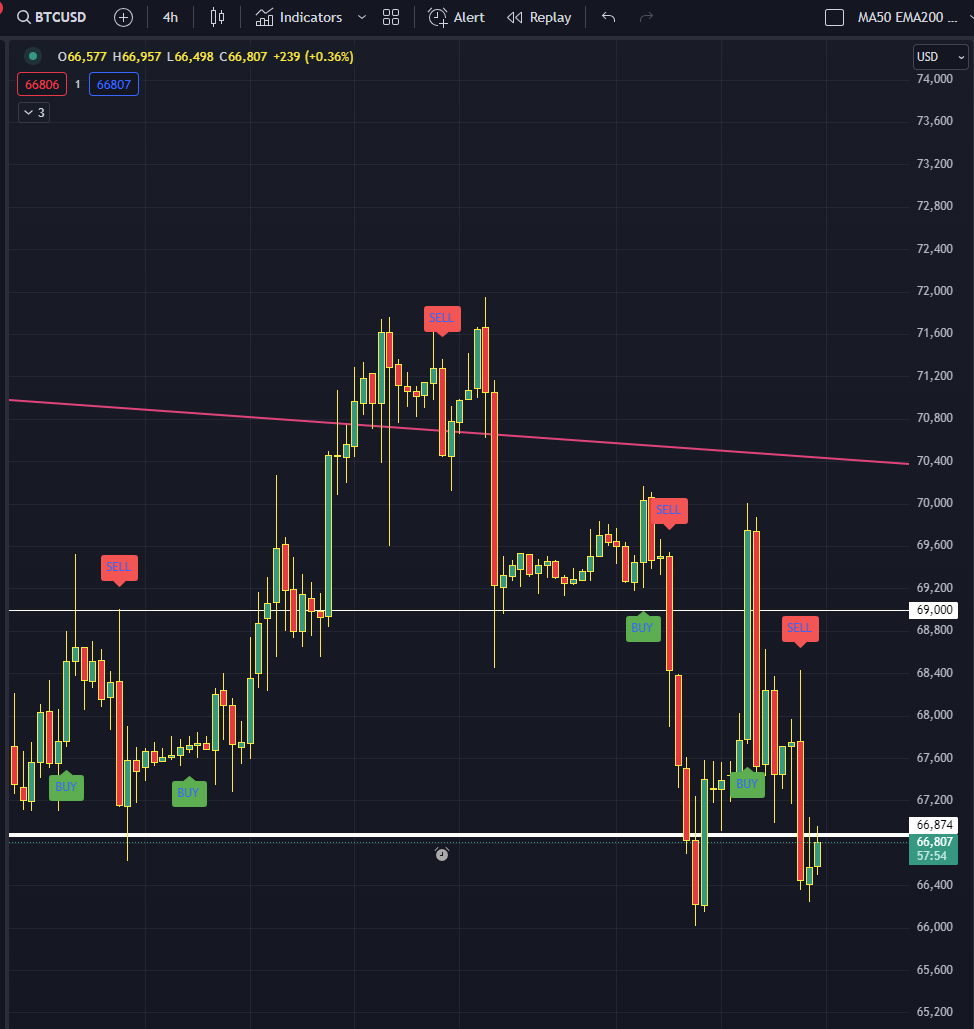
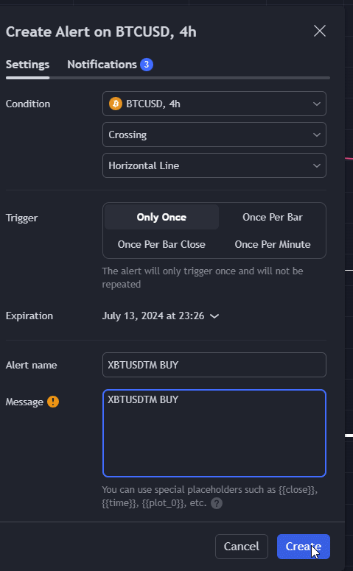
Step 2: Setting the Alert
Next, add the alert in TradingView. Right-click on the chart, select 'Add Alert,' and configure it to trigger based on our crossover condition.
We also add a custom Web Hook URL on the Notifications Tab.
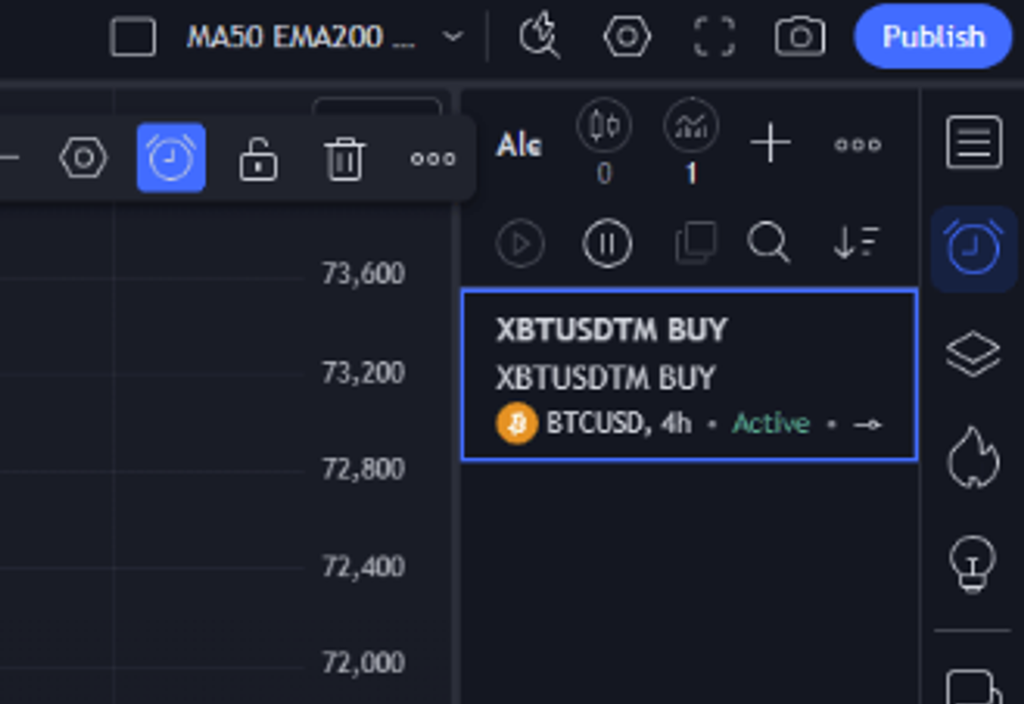
Step 3: Verify the Alert Registration
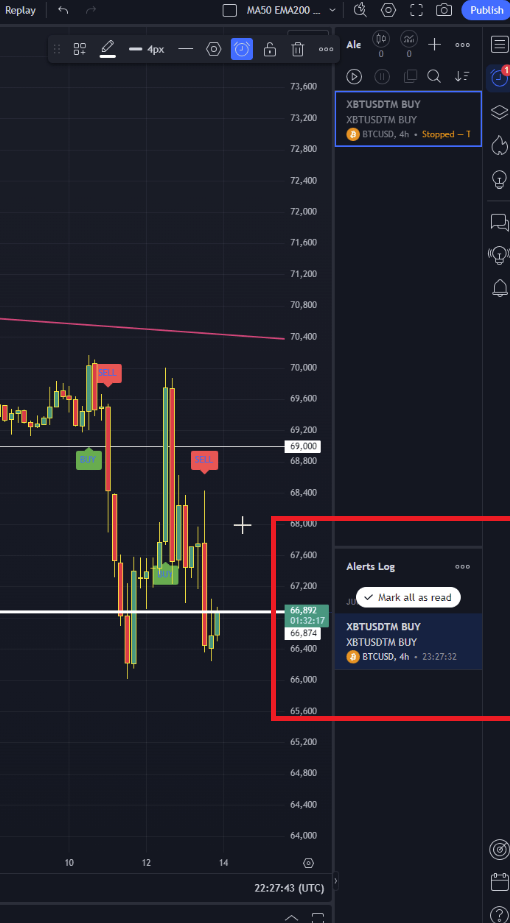
Ensure the alert has been registered correctly. You should see it in the 'Alerts' tab on TradingView.
Step 4: Price Crosses the Line to Trigger the Alert
When the price crosses the specified line, the alert is triggered, and a webhook message is sent to our AWS Lambda function.
Step 5: Webhook Sends a Message to AWS Lambda
TradingView alerts can be configured to send HTTP POST requests to a webhook URL. This URL will point to our AWS Lambda function.
Step 6: AWS Lambda Executes the Trade
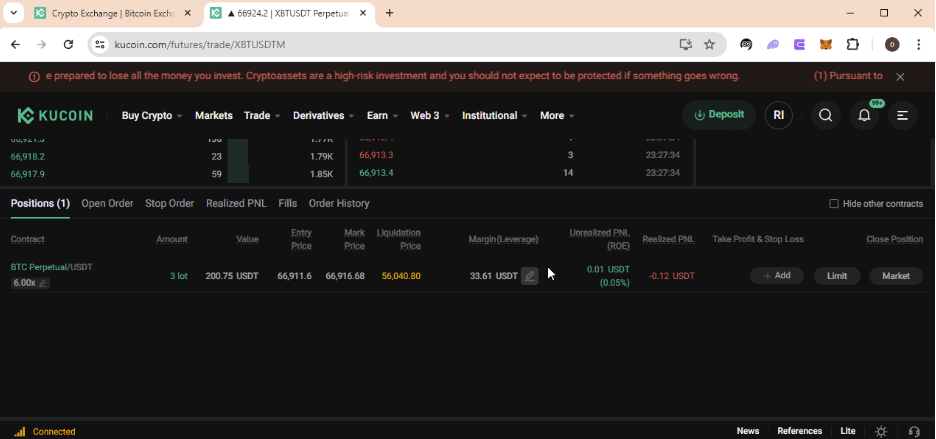
The AWS Lambda function receives the webhook message and processes it to execute a buy order on the KuCoin Futures market. Here’s an example trade executed:
Step 7: Monitoring Logs in AWS CloudWatch
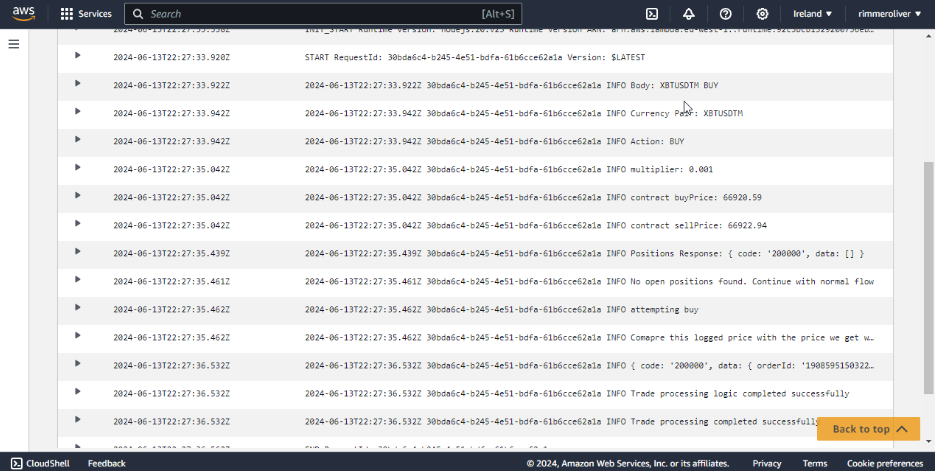
All activities are logged in AWS CloudWatch for monitoring and debugging purposes. You can view detailed logs of each Lambda function invocation to ensure everything is working as expected.
Cost Efficiency
The end-to-end flow from TradingView alert to trade execution on KuCoin takes less than 2 seconds and costs approximately $0.0000002 per request, making it a highly cost-effective solution for automated trading.
For more details on AWS Lambda pricing, refer to the AWS Lambda Pricing.
By following these steps, you can set up a fully automated trading bot that leverages the power of TradingView alerts and AWS Lambda to execute trades in real-time, ensuring you never miss a trading opportunity.